Krátký článek o instalaci a používání OpenSSH na Windows Server 2019.
Návod je zde: https://techcommunity.microsoft.com/t5/itops-talk-blog/installing-and-configuring-openssh-on-windows-server-2019/ba-p/309540, je nutno v něm opravit chyby.
Mělo by to jít i na Windows 10, ale nezkoušel jsem to.
OpenSSH jsem na Windows Server 2019 instaloval kvůli tomu, že chci v noci automaticky zálohovat celý virtuální disk. Windows Server mi běží virtualizovaně v KVM.
Instalace na Windows Serveru
Spustíme PowerShell 7
PS: Add-WindowsCapability -Online -Name OpenSSH.Server~~~~0.0.1.0 (1)
PS: Add-WindowsCapability -Online -Name OpenSSH.Client~~~~0.0.1.0 (2)
PS: Install-Module -Name OpenSSHUtils -RequiredVersion 0.0.2.0 (3)| 1 | instalace openssh serveru |
| 2 | instalace openssh klienta |
| 3 | instalace modulu pro podporu openssh v powershellu. Tady je 1. chyba. |
Je nutné nainstalovat .NET Framework 4.8, bez toho nejde nainstalovat choco. Stáhnout offline instalátor možno: odtud
Je dobré si nainstalovat Nano (funguje stejně jako na Linuxu)
PS: Set-ExecutionPolicy Bypass
PS: Iwr https://chocolatey.org/install.ps1 -UseBasicParsing | iex
PS: choco install nano -y
Nastavení služeb na automatické startování
PS: Set-Service -Name ssh-agent -StartupType Automatic
PS: Set-Service -Name sshd -StartupType Automatic
Start služeb
PS: Start-Service ssh-agent
PS: Start-Service sshd
Vytvořit adresář c:\Users\Administrator\.ssh
linux ~ # scp .ssh/id_rsa.pub Administrator@<server>:C:/Users/Administrator/.ssh/authorized_keysnebo
linux ~ # scp .ssh/id_ed25519.pub Administrator@<server>:C:/Users/Administrator/.ssh/authorized_keysPS: Repair-AuthorizedKeyPermission 'C:\users\Administrator\.ssh\authorized_keys'Tady souhlasit a potom odebrat práva pro
PS: Icacls .ssh/authorized_keys /remove “NT SERVICE\sshd”
PS:nano c:\ProgramData\ssh\sshd_config (1)| 1 | spouštíme nano k úpravě sshd_config |
Je třeba zakomentovat
# Match Group administrators
#       AuthorizedKeysFile __PROGRAMDATA__/ssh/administrators_authorized_keys
Potom je .ssh stejné i pro Administrátora jako na Linuxu
PS: Restart-Service sshdlinux ~ # ssh Administrator@<server>a už to funguje s klíčem
Pak je možné provést vzdálený restart serveru, nejdříve ručně.
linux ~ # ssh Administrator@<server>
Microsoft Windows [Version 10.0.17763.4645]
(c) 2018 Microsoft Corporation. Všechna práva vyhrazena.

administrator@SERVER C:\Users\Administrator> shutdown /r /c: "Zaloha" /t 10 (1)
administrator@SERVER C:\Users\Administrator> exit (2)| 1 | Jsme na Windows Serveru, uděláme restart serveru za 10 sekund. |
| 2 | Musíme se rychle odhlásit (pomocí exit, Ctrl+D nefunguje), jinak zůstane ssh spojení viset a musíme ho potom odstřelit z linuxu pomocí kill |
Takhle to funguje z linuxu bez toho, že bychom něco ručně psali:
# ssh Administrator@<server> "shutdown /r /c: \"Restart\" "Stopnutí serveru kvůli záloze image
# ssh Administrator@<server> "shutdown /s /c: \"Zaloha image\" /d u:4:1 "Problémy při přihlašování klíčem
Přihlášení klíčem nefunguje, pokud je nastaveno dědění oprávnění na uživatelově souboru .ssh\authorized_keys (obvykle tam potom je, že uživatel sshd má opravnění číst).
Je potřeba, aby přístup k souboru authorized_keys měl jenom uživatel vlastník a uživatel System.
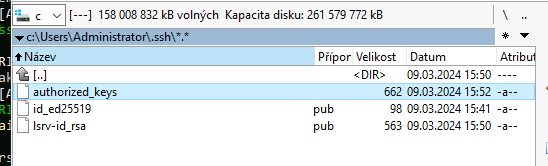
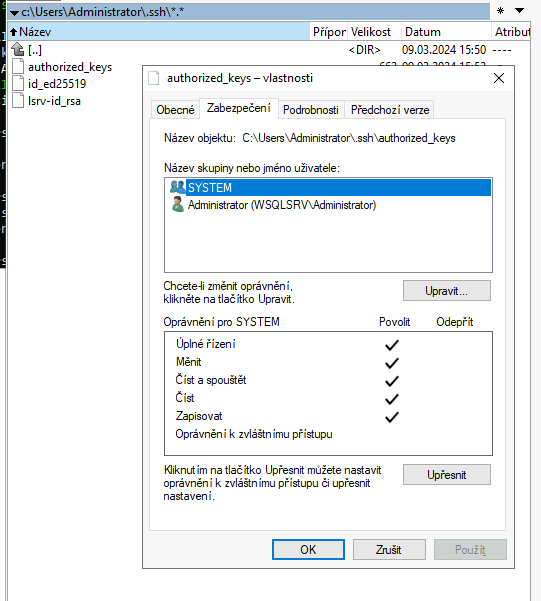
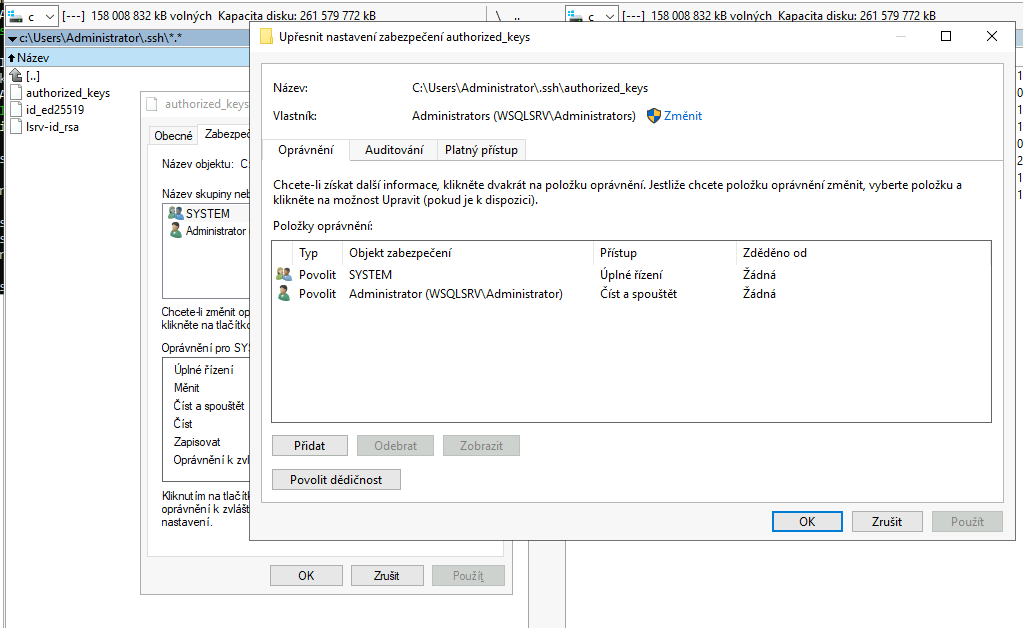
Poznámka: Ekvivalent linuxového příkazu `cat` se na Windows jmenuje `type`.
Řešení chyby 1067 při strartu služby sshd
Většinou je tato chyba způsobená nesprávnou konfigurací.
Pokud budete hledat na internetu, tak vám vyleze spousta návodů, které většinou budou k ničemu, protože popisují řešení úplně jiné chyby, než je ta u vás.
Je potřeba především zkontrolovat konfigurační soubor c:\ProgramData\ssh\sshd_config na chyby.
Pokud je nevidíte (jako že to v EventVieweru neuvidíte), tak uělejte toto:
-
Spusťe cmd nebo powershell.
-
Zastavte službu sshd pokud běží (
net stop sshd) -
Nastartujte
sshdv příkazové řádce s paramaetrem ladění-d. -
Zkuste z ladících informací objevit chybu.
-
Po opravě chyby nezapomeňte službu nahodit (
net start sshd).
C:\Users\Administrator>net start sshd
Spouštění služby OpenSSH SSH Server.
Službu OpenSSH SSH Server nelze spustit.

Došlo k chybě systému.

Došlo k systémové chybě 1067. (1)

Proces neočekávaně skončil.


C:\Users\Administrator>| 1 | Zákeřná chyba, vůbec nevím o co jde. |
C:\Users\Administrator>sshd -d
__PROGRAMDATA__\\ssh/sshd_config: line 90: Bad configuration option: PaswordAuthentication (1)
__PROGRAMDATA__\\ssh/sshd_config line 90: Directive 'PaswordAuthentication' is not allowed within a Match block| 1 | Chyba v PasswordAuthentication (je tam jenom jedno s). Opravím to a je to prakticky hotovo.
Námitka: To se ti to opravuje chyby, když víš jak na to. Poznámka: Ano, tuhle chybu jsem demonstračně udělal, ale fakticky jsem ji na serveru měl. Hledal jsem přes hodinu na internetu třeba "sshd server Windows error 1067", než jsem našel tento způsob, jak chybu snadno objevit a potom ji i snadno opravit. Žádný konkrétní návod mi moc nepomohl. |
C:\Users\Administrator>net stop sshd (1)
Zastavování služby OpenSSH SSH Server.
Služba OpenSSH SSH Server byla úspěšně zastavena.


C:\Users\Administrator>sshd -d (2)
debug1: sshd version OpenSSH_for_Windows_7.7, LibreSSL 2.6.5
debug1: private host key #0: ssh-rsa SHA256:NZFMt+RIZMOI5wsfwLbkGmMb/Sw14TTPoVZfc8vfscg
debug1: private host key #1: ecdsa-sha2-nistp256 SHA256:OJxM15wS+jYUq25hkTQ6fEyImC42qT1vk4cwf5jZ1AU
debug1: private host key #2: ssh-ed25519 SHA256:5RQD3S58A4H5VD6xhIbX2vJ6S1QSv9g5dPGplVxL1Wk
debug1: rexec_argv[0]='sshd'
debug1: rexec_argv[1]='-d'
debug1: Bind to port 22 on ::.
Server listening on :: port 22.
debug1: Bind to port 22 on 0.0.0.0.
Server listening on 0.0.0.0 port 22. (3)
debug1: Server will not fork when running in debugging mode.
Connection from 192.168.2.12 port 53764 on 192.168.2.15 port 22 (4)
debug1: Client protocol version 2.0; client software version OpenSSH_9.3
debug1: match: OpenSSH_9.3 pat OpenSSH* compat 0x04000000
debug1: Local version string SSH-2.0-OpenSSH_for_Windows_7.7
debug1: sshd version OpenSSH_for_Windows_7.7, LibreSSL 2.6.5
debug1: list_hostkey_types: ssh-rsa,rsa-sha2-512,rsa-sha2-256,ecdsa-sha2-nistp256,ssh-ed25519 [preauth]
debug1: SSH2_MSG_KEXINIT sent [preauth]
debug1: SSH2_MSG_KEXINIT received [preauth]
debug1: kex: algorithm: curve25519-sha256 [preauth]
debug1: kex: host key algorithm: ssh-ed25519 [preauth]
debug1: kex: client->server cipher: chacha20-poly1305@openssh.com MAC: <implicit> compression: none [preauth]
debug1: kex: server->client cipher: chacha20-poly1305@openssh.com MAC: <implicit> compression: none [preauth]
debug1: expecting SSH2_MSG_KEX_ECDH_INIT [preauth]
debug1: rekey after 134217728 blocks [preauth]
debug1: SSH2_MSG_NEWKEYS sent [preauth]
debug1: expecting SSH2_MSG_NEWKEYS [preauth]
debug1: SSH2_MSG_NEWKEYS received [preauth]
debug1: rekey after 134217728 blocks [preauth]
debug1: KEX done [preauth]
debug1: userauth-request for user Administrator service ssh-connection method none [preauth]
debug1: attempt 0 failures 0 [preauth]
debug1: userauth-request for user Administrator service ssh-connection method publickey [preauth]
debug1: attempt 1 failures 0 [preauth]
debug1: userauth_pubkey: test pkalg rsa-sha2-512 pkblob RSA SHA256:NkSipV3wHUXvf6mcUmcrzY1eL2jtlbHGNf2WNiD8+Kg [preauth]
debug1: trying public key file C:\\Users\\Administrator\\.ssh/authorized_keys
debug1: C:\\Users\\Administrator\\.ssh/authorized_keys:2: matching key found: RSA SHA256:NkSipV3wHUXvf6mcUmcrzY1eL2jtlbHGNf2WNiD8+Kg
debug1: C:\\Users\\Administrator\\.ssh/authorized_keys:2: key options: agent-forwarding port-forwarding pty user-rc x11-forwarding
Accepted key RSA SHA256:NkSipV3wHUXvf6mcUmcrzY1eL2jtlbHGNf2WNiD8+Kg found at C:\\Users\\Administrator\\.ssh/authorized_keys:2
Postponed publickey for Administrator from 192.168.2.12 port 53764 ssh2 [preauth]
debug1: userauth-request for user Administrator service ssh-connection method publickey [preauth]
debug1: attempt 2 failures 0 [preauth]
debug1: trying public key file C:\\Users\\Administrator\\.ssh/authorized_keys
debug1: C:\\Users\\Administrator\\.ssh/authorized_keys:2: matching key found: RSA SHA256:NkSipV3wHUXvf6mcUmcrzY1eL2jtlbHGNf2WNiD8+Kg
debug1: C:\\Users\\Administrator\\.ssh/authorized_keys:2: key options: agent-forwarding port-forwarding pty user-rc x11-forwarding
Accepted key RSA SHA256:NkSipV3wHUXvf6mcUmcrzY1eL2jtlbHGNf2WNiD8+Kg found at C:\\Users\\Administrator\\.ssh/authorized_keys:2
debug1: auth_activate_options: setting new authentication options
Accepted publickey for Administrator from 192.168.2.12 port 53764 ssh2: RSA SHA256:NkSipV3wHUXvf6mcUmcrzY1eL2jtlbHGNf2WNiD8+Kg
debug1: monitor_child_preauth: Administrator has been authenticated by privileged process
debug1: auth_activate_options: setting new authentication options [preauth]
debug1: monitor_read_log: child log fd closed
debug1: Not running as SYSTEM: skipping loading user profile
User child is on pid 6460
debug1: sshd version OpenSSH_for_Windows_7.7, LibreSSL 2.6.5
debug1: rekey after 134217728 blocks
debug1: rekey after 134217728 blocks
debug1: ssh_packet_set_postauth: called
debug1: active: key options: agent-forwarding port-forwarding pty user-rc x11-forwarding
debug1: Entering interactive session for SSH2.
debug1: server_init_dispatch
debug1: server_input_channel_open: ctype session rchan 0 win 1048576 max 16384
debug1: input_session_request
debug1: channel 0: new [server-session]
debug1: session_new: session 0
debug1: session_open: channel 0
debug1: session_open: session 0: link with channel 0
debug1: server_input_channel_open: confirm session
debug1: server_input_global_request: rtype no-more-sessions@openssh.com want_reply 0
debug1: server_input_global_request: rtype hostkeys-prove-00@openssh.com want_reply 1
debug1: server_input_channel_req: channel 0 request pty-req reply 1
debug1: session_by_channel: session 0 channel 0
debug1: session_input_channel_req: session 0 req pty-req
debug1: Allocating pty.
debug1: session_pty_req: session 0 alloc windows-pty
debug1: Ignoring unsupported tty mode opcode 1 (0x1)
debug1: Ignoring unsupported tty mode opcode 2 (0x2)
debug1: Ignoring unsupported tty mode opcode 3 (0x3)
debug1: Ignoring unsupported tty mode opcode 4 (0x4)
debug1: Ignoring unsupported tty mode opcode 5 (0x5)
debug1: Ignoring unsupported tty mode opcode 6 (0x6)
debug1: Ignoring unsupported tty mode opcode 7 (0x7)
debug1: Ignoring unsupported tty mode opcode 8 (0x8)
debug1: Ignoring unsupported tty mode opcode 9 (0x9)
debug1: Ignoring unsupported tty mode opcode 10 (0xa)
debug1: Ignoring unsupported tty mode opcode 12 (0xc)
debug1: Ignoring unsupported tty mode opcode 13 (0xd)
debug1: Ignoring unsupported tty mode opcode 14 (0xe)
debug1: Ignoring unsupported tty mode opcode 18 (0x12)
debug1: Ignoring unsupported tty mode opcode 30 (0x1e)
debug1: Ignoring unsupported tty mode opcode 31 (0x1f)
debug1: Ignoring unsupported tty mode opcode 32 (0x20)
debug1: Ignoring unsupported tty mode opcode 33 (0x21)
debug1: Ignoring unsupported tty mode opcode 34 (0x22)
debug1: Ignoring unsupported tty mode opcode 35 (0x23)
debug1: Ignoring unsupported tty mode opcode 36 (0x24)
debug1: Ignoring unsupported tty mode opcode 37 (0x25)
debug1: Ignoring unsupported tty mode opcode 38 (0x26)
debug1: Ignoring unsupported tty mode opcode 39 (0x27)
debug1: Ignoring unsupported tty mode opcode 40 (0x28)
debug1: Ignoring unsupported tty mode opcode 41 (0x29)
debug1: Ignoring unsupported tty mode opcode 42 (0x2a)
debug1: Ignoring unsupported tty mode opcode 50 (0x32)
debug1: Ignoring unsupported tty mode opcode 51 (0x33)
debug1: Ignoring unsupported tty mode opcode 52 (0x34)
debug1: Ignoring unsupported tty mode opcode 53 (0x35)
debug1: Ignoring unsupported tty mode opcode 54 (0x36)
debug1: Ignoring unsupported tty mode opcode 55 (0x37)
debug1: Ignoring unsupported tty mode opcode 56 (0x38)
debug1: Ignoring unsupported tty mode opcode 57 (0x39)
debug1: Ignoring unsupported tty mode opcode 58 (0x3a)
debug1: Ignoring unsupported tty mode opcode 59 (0x3b)
debug1: Ignoring unsupported tty mode opcode 60 (0x3c)
debug1: Ignoring unsupported tty mode opcode 61 (0x3d)
debug1: Ignoring unsupported tty mode opcode 62 (0x3e)
debug1: Ignoring unsupported tty mode opcode 70 (0x46)
debug1: Ignoring unsupported tty mode opcode 71 (0x47)
debug1: Ignoring unsupported tty mode opcode 72 (0x48)
debug1: Ignoring unsupported tty mode opcode 73 (0x49)
debug1: Ignoring unsupported tty mode opcode 74 (0x4a)
debug1: Ignoring unsupported tty mode opcode 75 (0x4b)
debug1: Ignoring unsupported tty mode opcode 90 (0x5a)
debug1: Ignoring unsupported tty mode opcode 91 (0x5b)
debug1: Ignoring unsupported tty mode opcode 92 (0x5c)
debug1: Ignoring unsupported tty mode opcode 93 (0x5d)
debug1: server_input_channel_req: channel 0 request env reply 0
debug1: session_by_channel: session 0 channel 0
debug1: session_input_channel_req: session 0 req env
debug1: server_input_channel_req: channel 0 request shell reply 1
debug1: session_by_channel: session 0 channel 0
debug1: session_input_channel_req: session 0 req shell
Starting session: shell on windows-pty for administrator from 192.168.2.12 port 53764 id 0 (5)
Environment:
  USER=administrator
  LOGNAME=administrator
  HOME=C:\Users\Administrator
  PATH=/usr/bin:/bin:/usr/sbin:/sbin:/usr/local/bin
  MAIL=/var/spool/mail/administrator
  SHELL=c:\windows\system32\cmd.exe
  SSH_CLIENT=192.168.2.12 53764 22
  SSH_CONNECTION=192.168.2.12 53764 192.168.2.15 22
  SSH_TTY=windows-pty
  TERM=linux
debug1: Executing command: "c:\\windows\\system32\\cmd.exe" with pty (6)
debug1: Received SIGCHLD.
debug1: session_by_pid: pid 536
debug1: session_exit_message: session 0 channel 0 pid 536
debug1: session_exit_message: release channel 0
debug1: session_by_channel: session 0 channel 0
debug1: session_close_by_channel: channel 0 child 0
Close session: user administrator from 192.168.2.12 port 53764 id 0
debug1: channel 0: free: server-session, nchannels 1
Received disconnect from 192.168.2.12 port 53764:11: disconnected by user (7)
Disconnected from 192.168.2.12 port 53764
debug1: do_cleanup

C:\Users\Administrator>| 1 | Zastavíme službu sshd. |
| 2 | Nastartujeme sshd v režimu ladění (parametr -d). Pokud budou nějaké chyby v konfiguraci, tak je sshd vypíše. |
| 3 | sshd server je spuštěný. |
| 4 | Zkusíme se přihlásit jako Administrator klíčem. |
| 5 | Administrátor je přihlášen. |
| 6 | Výpis environmentu. |
| 7 | Administrátor se odhlásil a sshd server skončil. Nezapomeneme službu nahodit pomocí net start sshd. |
Zdroje a odkazy
Spouštěcí skript virtualizovaného Windows Serveru 2019 na stroji s Gentoo Linuxem a KVM
kvm2 ~ # cat /etc/init.d/kvm-win2019
#!/sbin/openrc-run
# Copyright 1999-2016 Gentoo Foundation
# Distributed under the terms of the GNU General Public License v2
extra_commands="zaloha zalstop"

NAME="win2019"
WINIMG="/data4/iso/SW_DVD9_Win_Server_STD_CORE_2019_1809.9_64Bit_Czech_DC_STD_MLF_X22-44999.ISO"
VIRTIMG="/data4/iso/virtio-win-0.1.217.iso"
VIRTDISK="/data1/vm/win2019/win2019.qcow2"
ZALOHA="/data5/vm/win2019/win2019.qcow2"
pidfile="/run/kvm-${NAME}.pid"
MEMORY=32000
CORES=4
PORT=5906
MAC="00:25:2d:36:e6:f6"
NETDEV="mp6"
BR="br0"
TAP="tap6"
CHANNEL=5
SECRET="/etc/qemu/spice_secrets"

depend() {
        use logger clock hostname net
}

start() {
	ebegin "Starting ${SVCNAME}"
	mkdir -p /run/kvm-${NAME}
	BUS=`lsusb | grep 'Zebra ZTC S4M-200dpi ZPL' | cut -d ' ' -f 4 | cut -d '0' -f 3 | cut -d ':' -f 1` (1)
	DEV=`lsusb | grep 'Zebra ZTC S4M-200dpi ZPL' | cut -d ' ' -f 2 | cut -d 0 -f 3` (2)
	qemu-system-x86_64 --enable-kvm \
		-name ${NAME} \
		-drive driver=qcow2,file=${VIRTDISK},if=virtio \
		-m ${MEMORY} \
		-device virtio-net,netdev=${NETDEV},mac=${MAC} \
		-netdev tap,id=${NETDEV},ifname=${TAP},br=${BR} \
		-cdrom ${WINIMG} \
		-drive file=${VIRTIMG},index=3,media=cdrom \
		-rtc base=localtime,clock=host \
		-smp cores=${CORES} \
		-object secret,id=spice_sec,file=${SECRET} \
		-vga qxl -device virtio-serial-pci -spice port=${PORT},password-secret=spice_sec \
		-device virtserialport,chardev=spicechannel1,name=com.redhat.spice.1 -chardev spicevmc,id=spicechannel1,name=vdagent \
		-monitor unix:/run/kvm-${NAME}/monitor,server,nowait \
		-object rng-random,id=rng0,filename=/dev/urandom -device virtio-rng-pci,rng=rng0 \
		-usb -device usb-host,hostbus=${BUS},hostaddr=${DEV}  \
		-daemonize \
		-pidfile ${pidfile}
	eend $?
}

stop() {
	ebegin "Stopping ${SVCNAME}"
	ssh Administrator@server "shutdown /s /c: \"Zaloha\" /t 10 /d p:4:1" || echo system_powerdown | socat - UNIX-CONNECT:/run/kvm-${NAME}/monitor (3)
	sleep 40
	start-stop-daemon --stop --pidfile ${pidfile}
	ret=$?
	eend ${ret}
}

zaloha() {	(4)
	stop
	ebegin "Zalohuji ${SVCNAME}"
	mv ${ZALOHA}.7.zst ${ZALOHA}.8.zst
	mv ${ZALOHA}.6.zst ${ZALOHA}.7.zst
	mv ${ZALOHA}.5.zst ${ZALOHA}.6.zst
	mv ${ZALOHA}.4.zst ${ZALOHA}.5.zst
	mv ${ZALOHA}.3.zst ${ZALOHA}.4.zst
	mv ${ZALOHA}.2.zst ${ZALOHA}.3.zst
	mv ${ZALOHA}.1.zst ${ZALOHA}.2.zst
	zstd -10 -T8 -k -c -o ${ZALOHA}.1.zst -- ${VIRTDISK} (5)
	eend $?
	start
}

zalstop() { (6)
	stop
	ebegin "Zalohuji ${SVCNAME}"
	mv ${ZALOHA} ${ZALOHA}.old
	cp ${VIRTDISK} ${ZALOHA}
	eend $?
}

# -chardev paralell, id=p1,path=/dev/parport0 \| 1 | Specialita, připojení tiskárny přes USB, získání čísla sběrnice |
| 2 | Specialita, připojení tiskárny přes USB, získání čísla zařízení |
| 3 | Vypnutí virtuálního serveru nejdříve pomocí ssh, selže-li potom pomocí tlačítka power. |
| 4 | Záloha virtuálního disku s opětovným nastartováním serveru |
| 5 | Zálohujeme rovnou s komprimací programem zstd. -T8 je počet vláken — jede to jako blesk |
| 6 | Záloha virtuálního disku bez nastartování serveru |